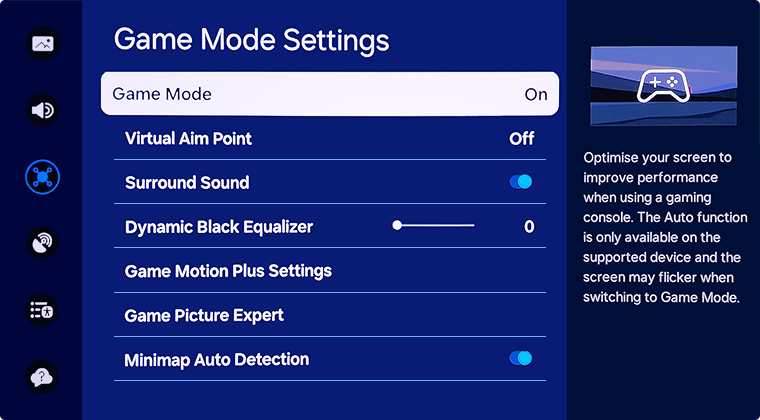
On your Samsung remote, press the Home button (that little house icon). Go to Settings (the gear icon), then Picture, then Expert Settings. Scroll down until you see Game Mode and flip it to On.
If you have a newer Samsung TV, it might even have a Game Bar that pops up when you press the play/pause button on the remote. That bar lets you tweak things like refresh rate and response time without digging through menus. Fancy!
And if your TV has a Game Motion Plus setting? You can play with that too. It adds a tiny bit of smoothness, but if you want the fastest possible response, keep it simple and just use Game Mode alone.
What About 4K and HDR in Game Mode?
Good news! Most modern Samsung TVs support 4K at 120Hz in Game Mode if you have a new console like the PS5 or Xbox Series X. That means gorgeous, silky-smooth gaming with almost no lag. Your eyeballs will thank you.
HDR (High Dynamic Range) might look a little dimmer in Game Mode because the TV isn’t doing extra brightness tricks. But again, the trade-off is pure speed. You can always manually tweak the brightness if it feels too dark.
Just remember: if you’re watching a cinematic masterpiece like a nature documentary, turn off Game Mode. You want every hair on that sloth’s arm to look lush and perfect. For gaming? Let the sloth be fast.